Create your account, sign in and reset your password
Create your account (first time only)
What it is for. Your account links you to your family member so you can see only their information. The centre checks who you are before it switches your account on.
Steps (phone)
- Open the app and tap Sign Up at the bottom of the sign-in page.
- Under the role choices, tap Family Member.
- Type your first name.
- Type your last name.
- Type your email address.
- Type a password. A list shows what it needs: at least 8 characters, not a common password, at least one number and at least one letter.
- Type your phone number if you wish. It is optional.
- Choose the care home your family member is at.
- Type your family member's name, as the centre knows it. At least three letters are needed.
- Tap the button to create your account.
- Open your email and tap the confirmation link.
- Wait for the centre to switch your account on. This happens when the centre's administrator approves it. When they do, the system sends you an email to say your account is ready (if it does not arrive, check your junk folder, or just try signing in).
When the centre approves your account, it also links you to your family member. Until then you can sign in at most to a page that says you are not linked yet.
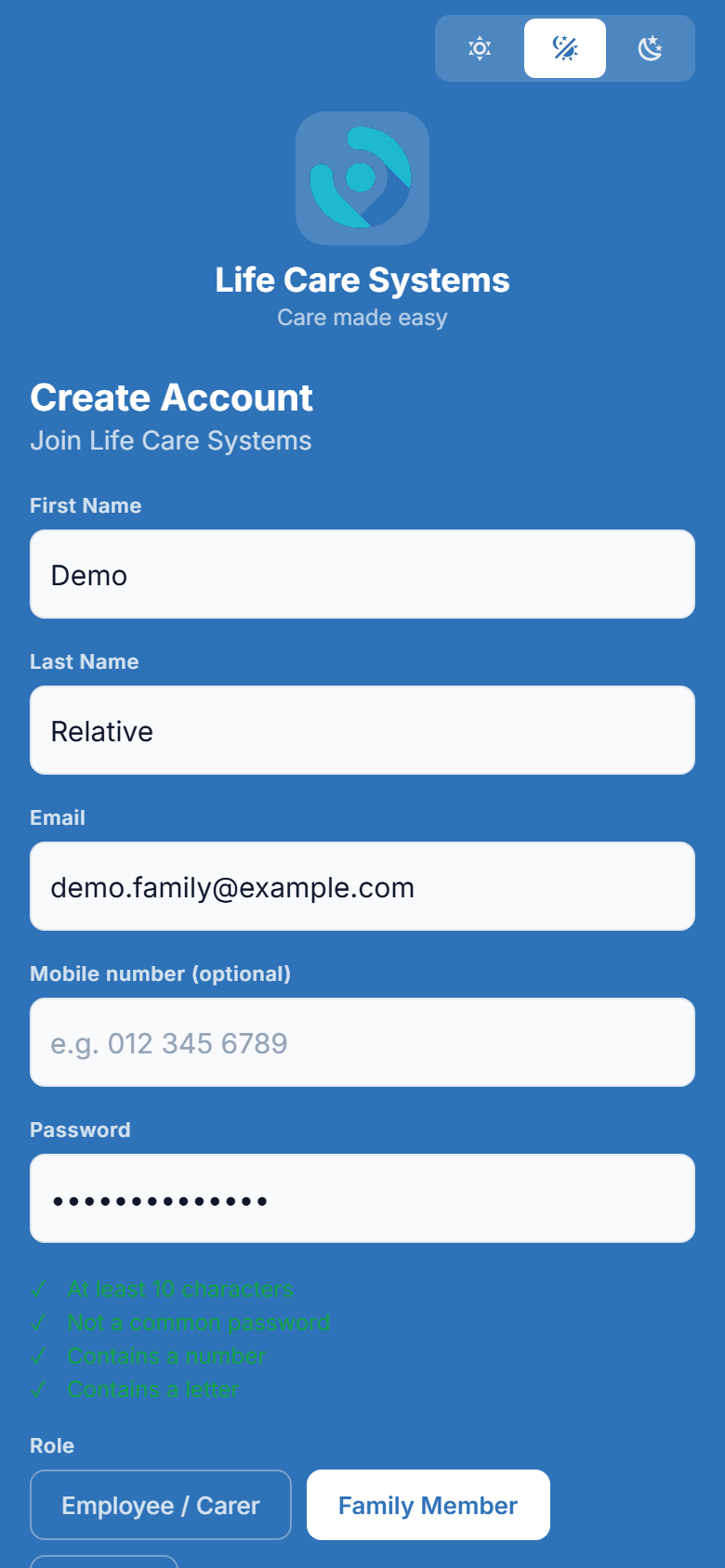
Figure 2.1. From sign-up to your first sign-in.
Accept the terms (first time only)
After you first sign in you may be asked to read and accept the Terms of Use and the Privacy Policy.
- Read each document.
- Tick the box to say you have read it.
- Tap Accept & Continue.
If you decline, the app signs you out. You cannot use the app without accepting.
Sign in
Steps (phone)
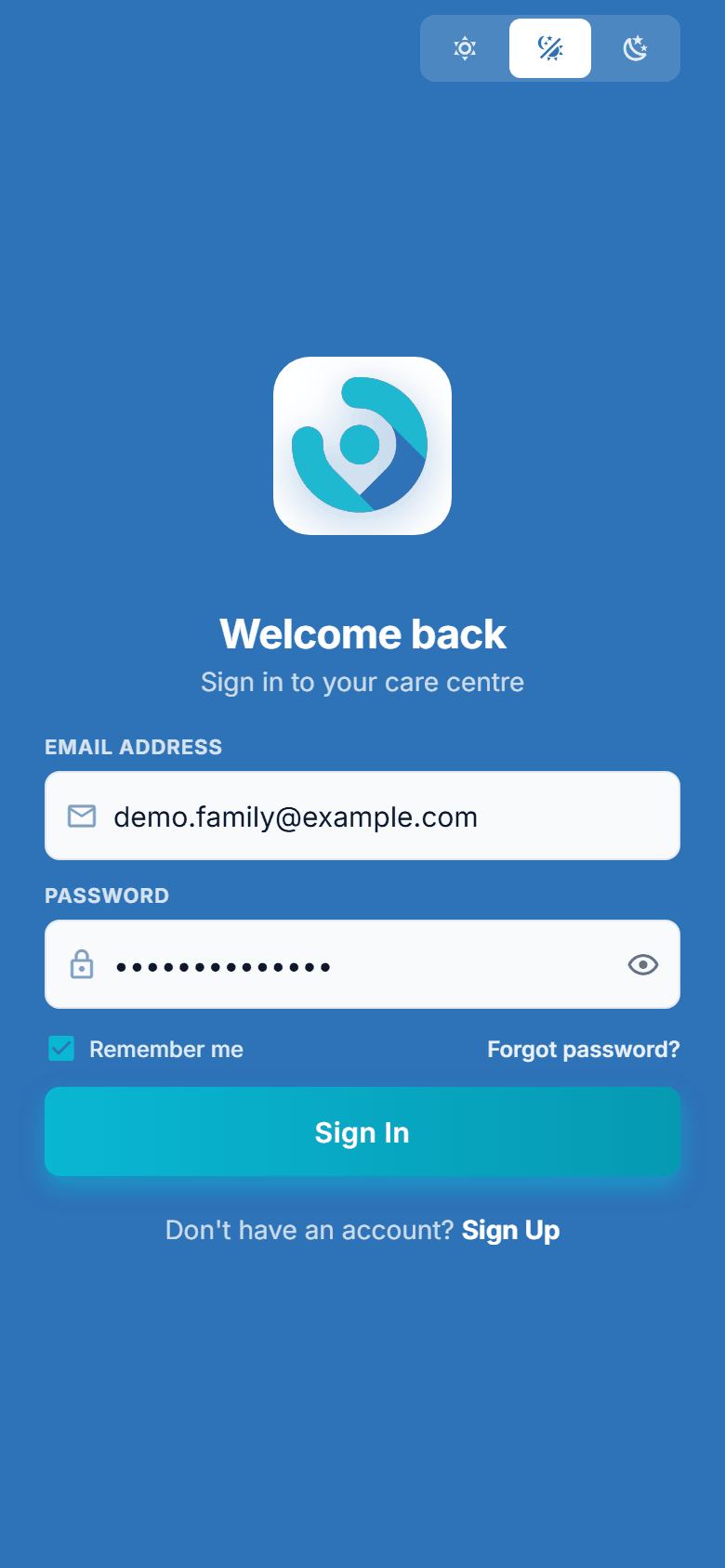
- Open the app. The page says "Welcome back".
- Type your email address.
- Type your password. Tap the small eye to see what you typed.
- Tick Remember me if you want the phone to keep your email address for next time.
- Tap Sign In.
You land on My client.
Steps (website)
- Go to the Life Care Systems web app at web.lifecaresystems.com.my. This is the address your password reset and sign-up emails send you back to.
- Type your email and password.
- Select the sign-in button. You land on My client.
Sign in with your fingerprint or face
After you have signed in once, you can turn on fingerprint or Face ID sign-in. See chapter 14. When it is on, the sign-in page offers a button for it, and the app may ask for it as soon as the page opens.
If you forget your password
Steps (phone)
- On the sign-in page, tap Forgot password?
- Type your email address.
- Tap Send Reset Link.
- The page says Check Your Email. Open your email.
- Tap the link in the email. A page opens in your browser.
- Type a new password and confirm it.
- Go back to the app and tap Back to Sign In.
- Sign in with your new password.
If the email does not arrive within a few minutes, look in your junk or spam folder. If it is still not there, make sure you typed the same address the centre has for you, then try once more, or ask the centre.
Figure 2.2. Resetting your password.
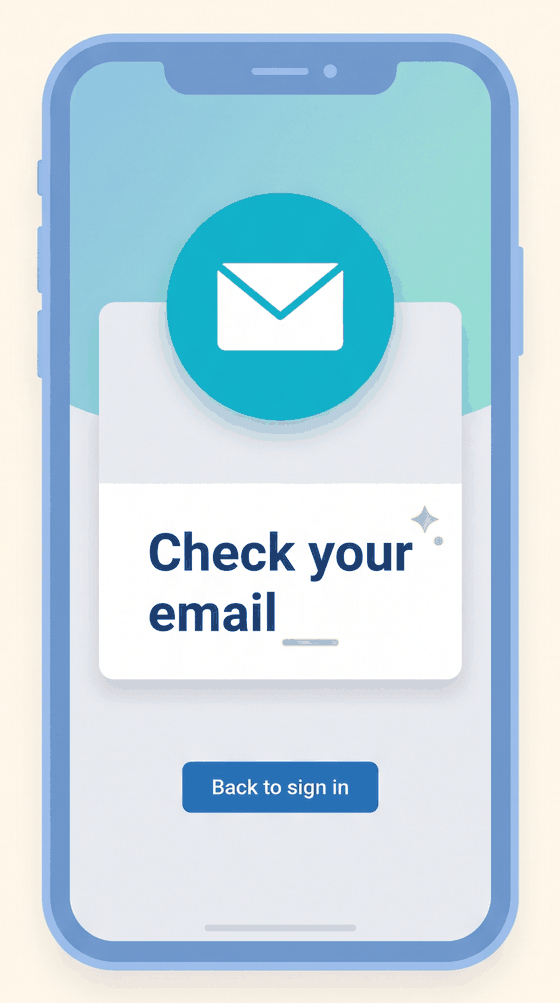
Illustration.
If you see "Access Unavailable"
This page appears when your account does not currently have access to the app. The page gives a reason. On the phone, the usual reason is "Your account is awaiting activation by an administrator. Please try again once your access has been approved." That is what you see if the centre has not yet approved your sign-up, or if the centre has switched your account off (for example after your family member has left). Tap Sign Out and ask the centre to help.
Tips
- Use a password you do not use anywhere else, and do not share it. Anyone who has it can see your family member's information.
- On a shared phone, leave Remember me unticked and sign out when you finish. See chapter 14.