See updates, photos and videos

What it is for
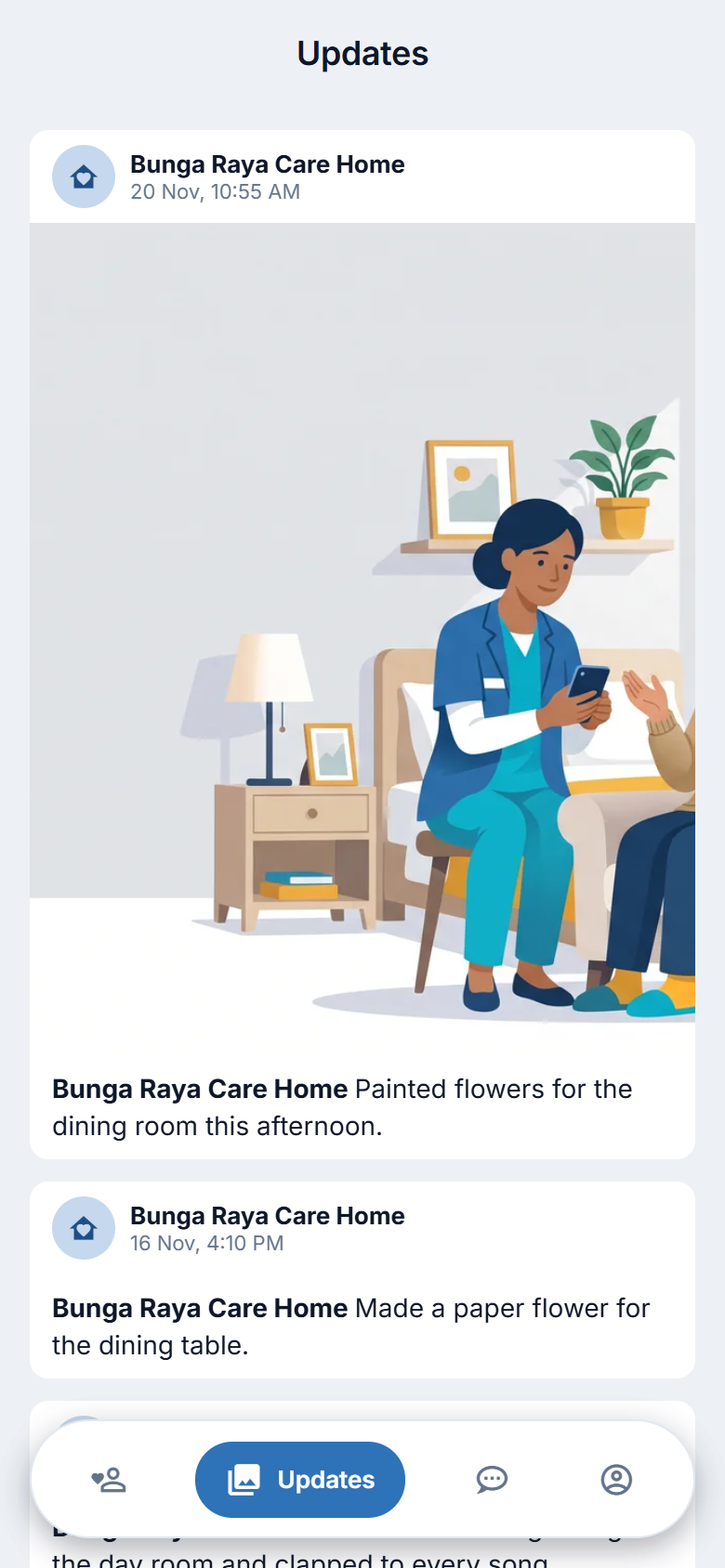
The centre shares photos and videos of your family member's days: an activity, a birthday, a good afternoon. They appear like posts on a social page: newest first, with the centre's name, the date and a short caption.
Only the centre can post. You can look; you cannot like, comment on or share them from within the app.
Steps (phone)
- Tap the Updates tab.
- Scroll down. The newest post is at the top.
- For a post with several photos, swipe sideways. A counter shows which one you are on.
- Tap a photo to open it larger. Tap Close to come back.
- Tap the play button on a video to watch it. It plays inside the post. Use the video's own controls to pause or move through it.
- If a caption is long, tap more to read all of it and less to fold it again.
- At the bottom, tap Show more (n) to load older posts.
- Pull down on the page to refresh.
If you look after more than one person, tap a name at the top first.
The Photos block inside Today on My client shows the same posts. Use whichever is easier.
If there is nothing here
"No social updates yet." means the centre has not shared anything. That is not a problem with the app.
A post that also shows other clients is only shown to you when each of those other clients has family photo consent on record. Otherwise the post does not appear for you at all.
On the website
There is no Updates tab. The posts are in Today, under Photos. Each has the same photo and caption, and a Show more button at the bottom.
Figure 5.1. Browsing updates.
Good to know
- You need a data or Wi-Fi connection to see photos. They are not saved on your phone by the app.
- Photos load small first. On the phone, each photo first appears as a small, quick copy (a plain tile with a spinner while it loads). Tap it to open the full-size photo. This keeps the page quick on a slow connection.
- A photo that does not load shows a tile that says "Photo did not load. Tap to try again." Tap it to try again. If it keeps failing, check your signal, then pull down to refresh.
- Videos show a picture. A video in a post shows a still picture with a play button on it, not a grey box. If the centre's phone did not save a picture, the website shows the first moment of the video instead. Posts from before this change may still show a plain dark "Video" box.
- Photos are of the centre's life and are shared with you in confidence. Please do not post them elsewhere without the centre's agreement. See chapter 15.