See and pay your bills, and download receipts
What it is for
The Bills section shows what is owed, the invoices the centre has sent, the payments it has received, and lets you download each invoice and receipt as a PDF.
Paying online works on the website and in the phone app (from app version 2.23.118), for invoices from some of the group's companies. A Pay button appears on an unpaid invoice only when the company that issued it can take online payments and at least RM 2 is still owed on it. An invoice from a company that is not set up for online payment yet shows no button. In that case pay the way your invoice and your admission pack tell you, or ask the centre.
Steps: see what you owe
- Tap My client.
- Tap Bills.
- At the top, TO PAY shows the amount still owed.
- If your account is in credit, IN CREDIT also shows.
Steps: read an invoice
- Under INVOICES, find the invoice. It shows its number, a chip, its date and its amount.
- The chip says one of: Paid, Partly paid, Overdue, In credit, or Due with a date. If nothing is due yet it says To pay.
- If something is still owed on it, the line "To pay" gives the amount left.
- Tap Invoice PDF to download it. The phone opens its share sheet so you can save it or send it. Say "Save to Files" or similar.
Steps: get a receipt
- Under PAYMENTS, find the payment. It shows the amount and the date, the method, and the invoice it was for.
- Tap Receipt PDF to download it.
If the PDF cannot be made, the page says "We could not get the PDF. Please try again."
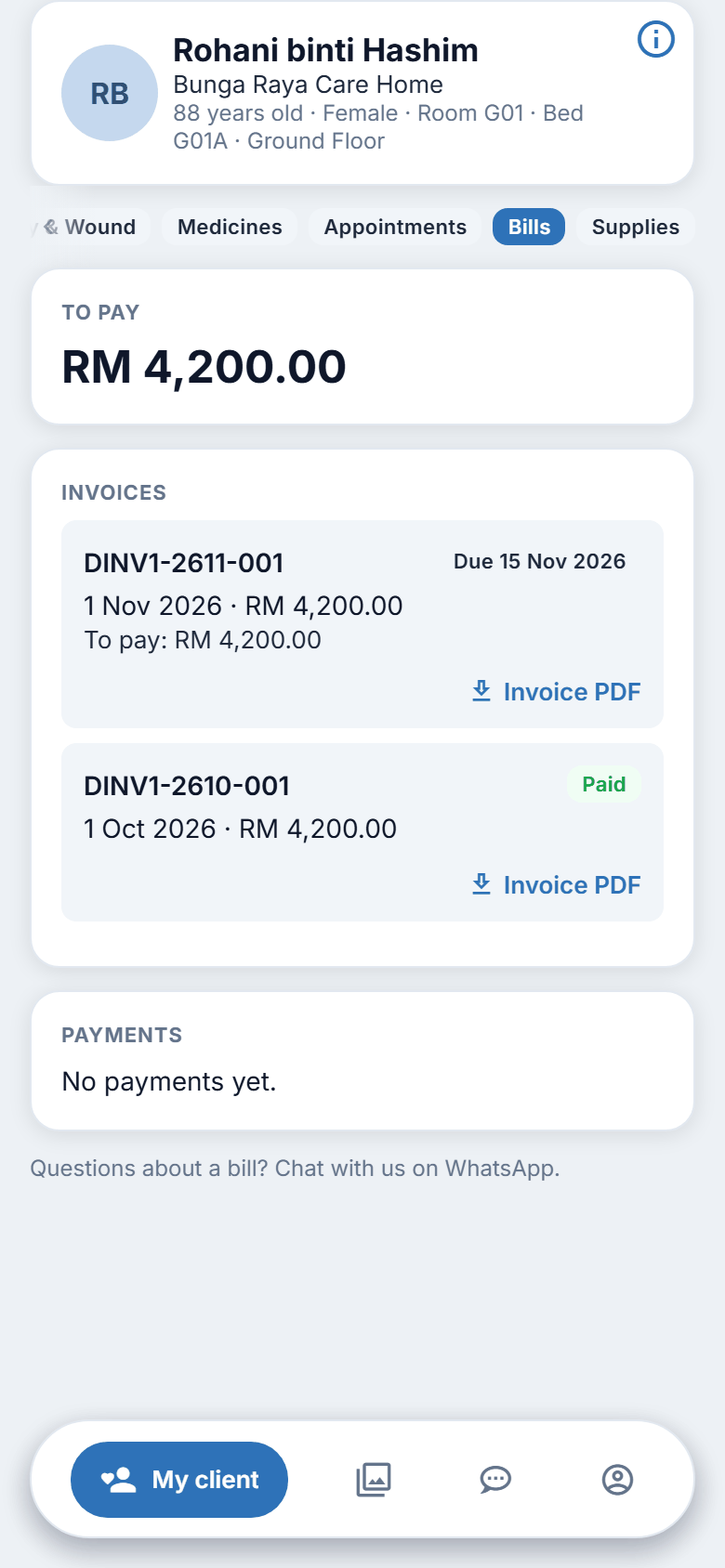
Figure 10.1. Reading bills.
Pay a bill online
What it is for. Paying an invoice from the website, by FPX online banking or by card. The payment goes to the account of the company that issued the invoice, so each company is paid into its own bank account.
Good to know before you pay
- You pay the whole amount still owed on one invoice. Part payments are not offered.
- The invoice must still owe at least RM 2.
- An online payment fee may apply. When it is on, the payment provider's fee for an online payment is added to what you pay, so that the centre receives the full invoice amount. You see the invoice amount, the fee and the total before you pay, and you must tick that you agree. Paying by bank transfer using the bank details on your invoice has no fee.
- You pay on a secure page run by Stripe, the payment provider. Your card or bank details are typed there. The centre and this app never see them.
- The payment is booked when Stripe confirms it to us. A card payment is usually confirmed at once. An online banking (FPX) payment can take longer, sometimes a few minutes.
Steps (website)
- Sign in on the website, tap My client, then Bills.
- Find the invoice that is not yet paid. If it can be paid online, a button Pay RM (the amount) online shows on it. If you cannot see the button, see "If there is no Pay button" below.
- Tap it. If an online payment fee applies, the button shows the total (for example Pay RM 125.26 online) and a box opens first, headed Online payment fee. It shows three lines: Invoice, Online payment fee and Total, a short explanation, and the line "You can also pay by bank transfer using the bank details on your invoice, with no fee." Tick I understand and agree to pay the online payment fee. The Pay button in the box stays greyed out until you tick it. Tap Cancel to go back: nothing is charged. When you tap Pay, the button says "Opening the payment page…" and the Stripe page opens in the same tab. (If no fee applies, there is no box: the button says "Opening the payment page…" straight away.) The Stripe page and its receipt show two lines: the invoice and the online payment fee.
- Choose FPX online banking or card and follow the steps on the page. Do not close the page until it sends you back. A page left open for more than about half an hour times out and nothing is taken; start again from Bills.
- When you have paid, the website brings you back to a page headed Thank you. It says one of:
- "Your payment has been received. A receipt is under Payments on the Bills page."
- "We are confirming your payment. This can take a minute. Please check the Bills page shortly." The page checks by itself for a short while. If it still says this, tap Back to bills and look again in a few minutes.
- "We have received your payment. The centre is checking it and will confirm it to you soon. You do not need to pay again." Leave it with the centre.
- Tap Back to bills. The invoice shows Paid, and the payment appears under PAYMENTS with a Receipt PDF.
- If you close the payment page without paying, the page is headed "Payment not made" and says "You did not complete the payment, so nothing was taken and your bill has not changed. You can try again from the Bills page." If the payment did not go through it says "The payment did not go through, so nothing was taken. You can try again from the Bills page, or ask the centre."
- If the payment page cannot be opened, you are told "We could not open the payment page. Please try again." If the bill changed while the page was opening, you are told so and asked to check the amount and try again.
8a. If the fee or its wording changed while the box was open, you are told "The amount or the wording of the online payment fee has changed. Please check the new amount and try again." Open the box again and read the new amount. The fee is not refundable unless the payment for the invoice itself is refunded. The invoice in Bills and its receipt show the invoice amount only; the fee is not part of the invoice.
The centre switched the online payment fee on after Lyndon approved its wording on 15 Nov 2026. It applies to every online payment, FPX or card, and the total is rounded up to the whole sen.
On the phone. Reading bills and downloading PDFs work as described above. Paying works in the phone app from version 2.23.118:
- Tap My client, then Bills.
- On an unpaid invoice that can be paid online, tap the button with the lock, Pay RM (the amount) online. If you cannot see it, see "If there is no Pay button" below.
- If an online payment fee applies, a box headed Online payment fee opens first. It shows Invoice, Online payment fee and Total, the explanation, and "You can also pay by bank transfer using the bank details on your invoice, with no fee." Tick I understand and agree to pay the online payment fee, then tap Pay RM (the total) online. Tap Cancel to go back: nothing is charged. (If no fee applies, there is no box.)
- The button says "Opening the payment page…" and the secure Stripe page opens in your phone's browser. Choose FPX online banking or card and follow the steps. Your bank or card details are never shared with the centre.
- When you have paid, close the payment page to return to the app. The app checks for a few seconds and then tells you one of: "Thank you. Your payment has been received."; "We have received your payment. The centre is checking it and will confirm it to you soon. You do not need to pay again."; or "If you completed the payment, it can take a minute to show here. Pull down to refresh." If you did not pay, it says "The payment was not made, so nothing was taken. You can try again." If the page cannot be opened: "We could not open the payment page. Please try again."
- Pull down on the Bills page to refresh. The invoice shows Paid, and the payment appears under PAYMENTS with a Receipt PDF.
If there is no Pay button
- The invoice is already paid, or less than RM 2 is owed on it.
- The company that issued the invoice is not set up for online payment yet.
- Paying online is not available for that invoice right now.
Pay the way your invoice says, or ask the centre (chapter 8). Do not pay twice: if you have paid and the invoice has not changed yet, wait a few minutes and look again.
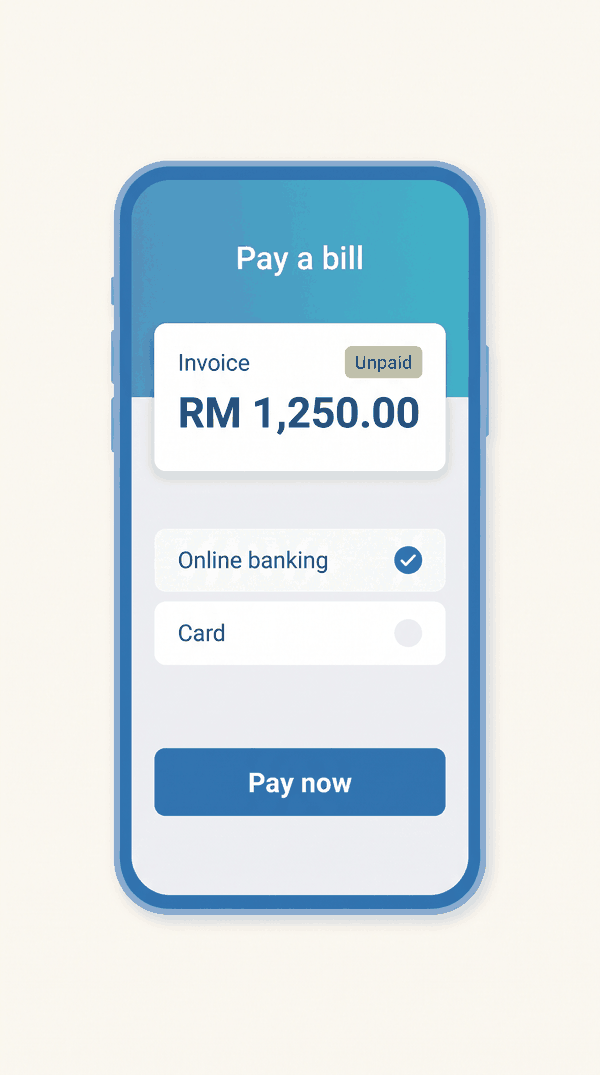
Illustration, not a real capture. Replace with a capture of the website Bills section showing an unpaid invoice with its Pay RM ... online button and the note under the list ("Pay by online banking (FPX) or card on a secure page. Your bank or card details are never shared with the centre."). It needs a company that is ready for live payments.
The Pay now button in your invoice email
When the centre emails you an invoice or a payment reminder, and the invoice can be paid online, the email has a Pay now button.
- Tap Pay now in the email.
- The website opens and asks you to sign in first. The button never pays for you and never signs you in.
- After you sign in, you land on the Bills page of that client. Tap Pay on the invoice, as in the steps above.
If your account may not see that client, you land on the normal Bills page and nothing more. If the invoice cannot be paid online, the email has no Pay now button. WhatsApp invoice messages do not carry a Pay now link yet.
Receipt emails
The centre can email you a receipt for a payment. A receipt email is also meant to go out by itself after each payment is received, online payments included.
Figure 10.2. Online payment.
Questions about a bill
At the bottom of the section: "Questions about a bill? Chat with us on WhatsApp." Use the Inbox tab (chapter 8).
On the website
The same section. The PDF downloads to your computer through your browser.
Good to know
- Only your family member's invoices are shown. You do not see the centre's other bills or other clients' bills.
- If an amount looks wrong, ask the centre before paying.
- If a bill needs correcting, only the centre can do it.