Supplies, and bringing a replacement pack
What it is for
Families often bring things for their relative: nappies, creams, wipes. This section shows what is running low, and lets you tell the centre you will bring it. If the centre lent your family member something from its own stock, you can also bring a new pack to replace it, and the charge is taken off once the team has checked it.
Steps: tell the centre you will bring something
- Tap My client.
- Tap Supplies.
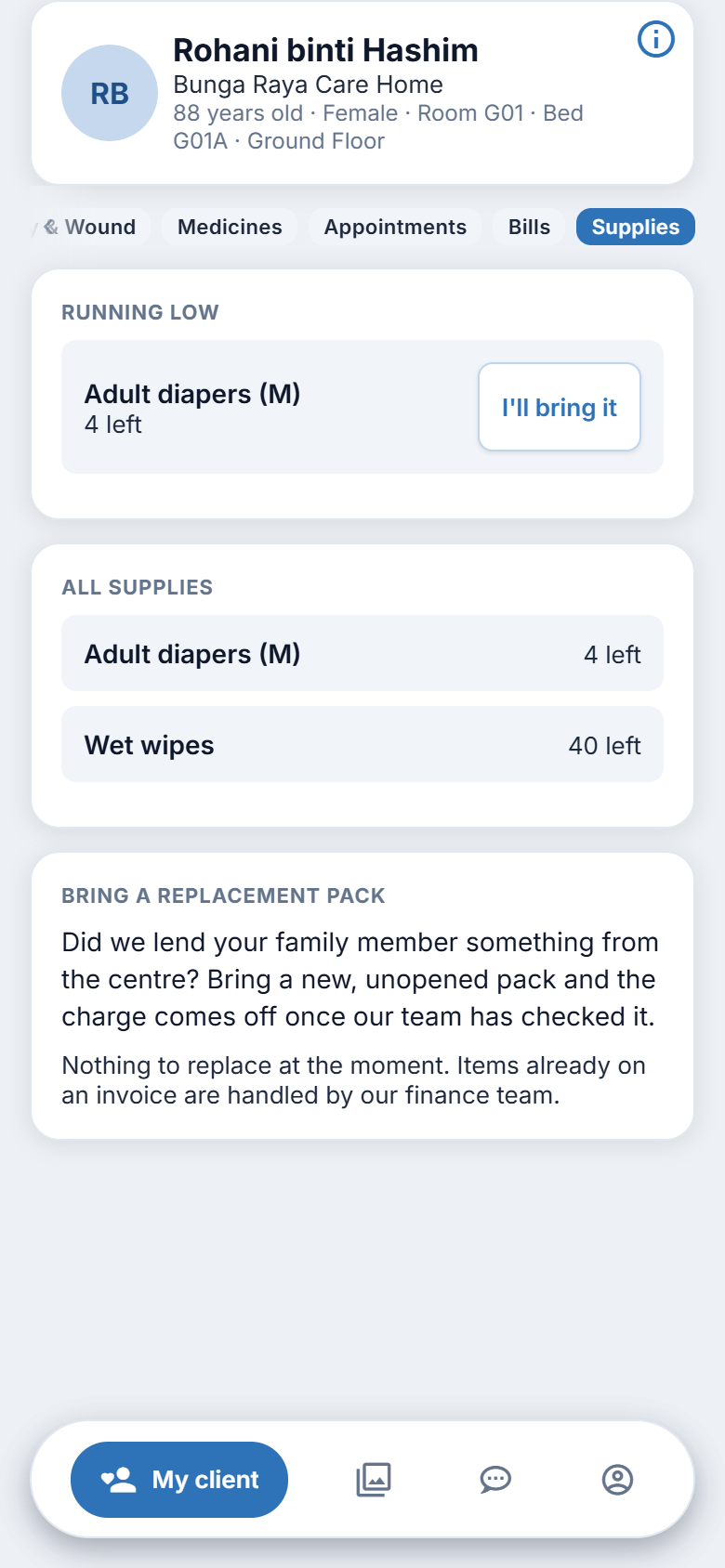
- Under RUNNING LOW, each item shows how much is left.
- Tap I'll bring it beside an item.
- A message thanks you and says the team will be told.
- The item now shows "You said you'll bring it".
If the item shows "You asked us to top it up", a top-up has already been asked for. If nothing is low, the page says "Nothing is running low."
Under ALL SUPPLIES you may also see everything of your family member's that the centre holds, with how much is left.
Steps: bring a replacement pack
Only items that can be replaced are listed under BRING A REPLACEMENT PACK. The page explains: "Did we lend your family member something from the centre? Bring a new, unopened pack and the charge comes off once our team has checked it."
- Under BRING A REPLACEMENT PACK, tap Start beside the item.
- Use the plus and minus buttons to choose how many packs you are bringing. You cannot choose more than the centre has recorded as open.
- Take a photo of the item: tap Take a photo. If the phone asks to use the camera, allow it. If you would rather use a photo already on your phone, tap Choose a photo.
- Check the photo. Tap Change photo if you want another.
- Tap Send. The button works only when there is a photo and a number chosen.
- Hand the pack or packs to the nurse station.
A photo is required. Without it Send stays greyed out. If the app on your phone does not offer a photo step at all and you are told "Please add a photo of the item. If the app does not ask for one, update the app from the App Store or Google Play and try again.", your app is out of date: update it, then try again.
After you send, a message says "Thanks! Please hand the pack to the nurse station. We'll confirm once our team has received it."
Steps: follow a replacement pack
Under YOUR REPLACEMENT PACKS you can see each pack with a chip:
| Chip | Meaning |
|---|---|
| Waiting for the pack | You sent the request. The centre has not yet got it. |
| Pack received, being checked | The centre has the pack and is checking it. |
| Charge taken off | The team accepted it and removed the charge. |
| Not accepted | The pack was not accepted. Ask the centre why. |
Figure 11.1. Bringing a replacement pack.
When there is nothing to replace
The page says "Nothing to replace at the moment. Items already on an invoice are handled by our finance team." For those, ask the centre.
On the website
The same section and the same steps, with one difference: there is no Take a photo button. Tap Choose a photo and pick a photo from your computer, or from your phone's photos if you are using the website on a phone. Once chosen, the button changes to Change photo. Until you add a photo the page says "Add a photo of the item to continue".
Good to know
- The camera is only used if you tap Take a photo.
- The photo goes to the centre's private store. It is used to check the pack.
- You do not pay here. The centre removes the charge from your invoice.