Look after your own account and notices
What it is for
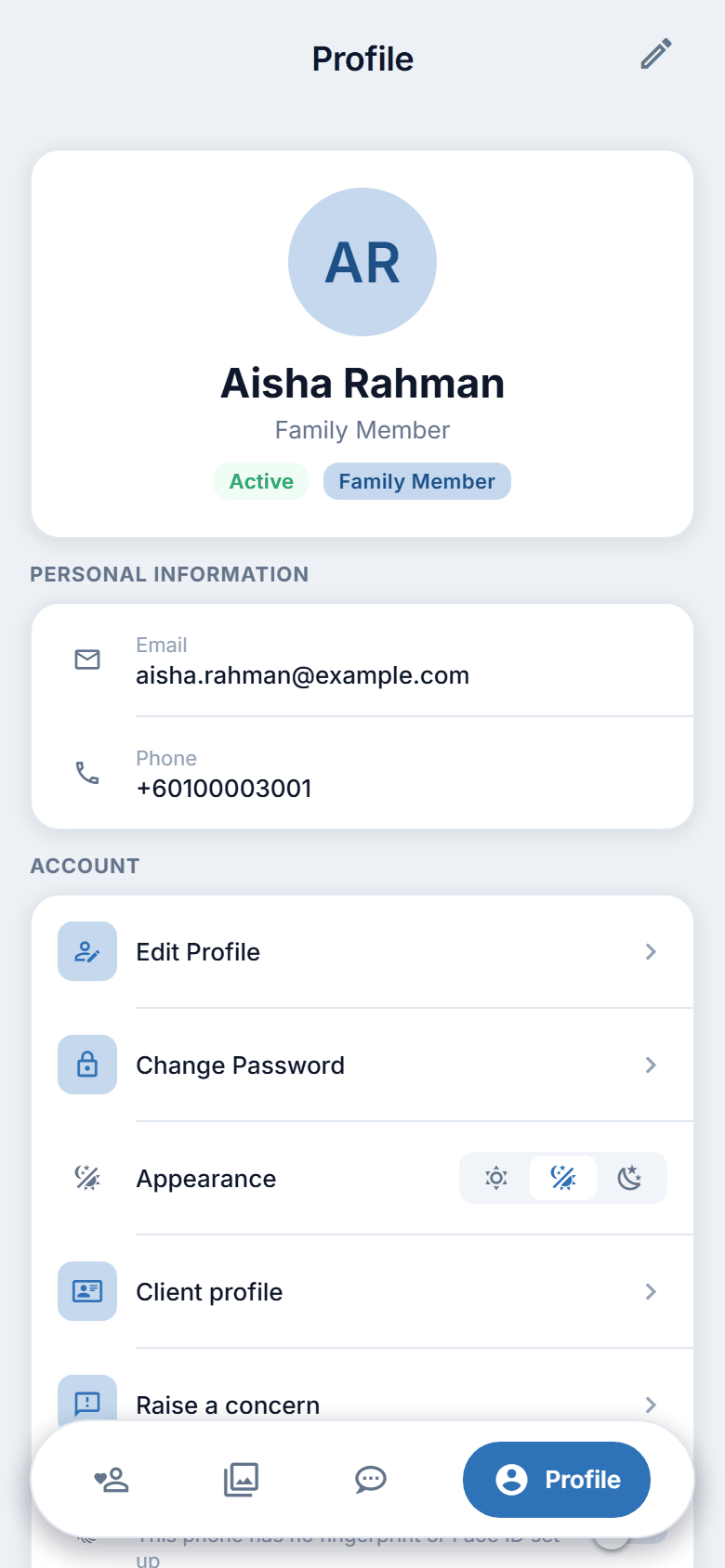
The Profile tab is about you: your name and details, your password, how you sign in, which notices you receive, and a way to ask us to delete your account.
Change your details
- Tap the Profile tab.
- Tap Edit Profile, or tap the pencil at the top right, or tap your photo.
- You can change: your photo (Add Photo or Change Photo), your nickname, your full name (required), your mobile number, your address, your date of birth, your NRIC / passport number, and your gender, nationality, religion and marital status. All except your full name are optional.
- Save.
A message says "Profile updated". Your email address is shown on the Profile page but cannot be changed here; ask the centre if it needs to change.
Change your password
- On Profile, tap Change Password.
- Type your new password.
- Type it again under Confirm New Password.
- Tap Update Password. A message says the password was changed.
When you change your password you are signed out of every phone and the website, including this one, on purpose. Sign in again with the new password.
The website and the phone ask for the same thing: at least 8 characters and a password that is not a common one. The strength bar shows Too short, Good or Strong.
If you have forgotten your password, use Forgot password? on the sign-in page. See chapter 2.
Sign in with your fingerprint or face
- On Profile, find the row Sign in with fingerprint or Face ID.
- Turn the switch on.
- The app asks for your password, then for your fingerprint or Face ID.
- When it works, a message says "Fingerprint / Face ID sign-in is on".
Turn the switch off to remove it. If the row is greyed out, it says "This phone has no fingerprint or Face ID set up": set one up in the phone's own settings first.
Choose light or dark
- On Profile, find Appearance.
- Tap the sun (light), the half moon (follow my phone) or the moon (dark).
Choose which notices you get
- On Profile, tap Notification Preferences.
- You see a short list under GENERAL:
- Care Updates: vitals, notes and incident alerts
- Appointments: booking confirmations and reminders
- Messages: messages from staff or family
- Each has two switches: Push (a notice on your phone) and Email. Both start on.
- Turn off any you do not want.
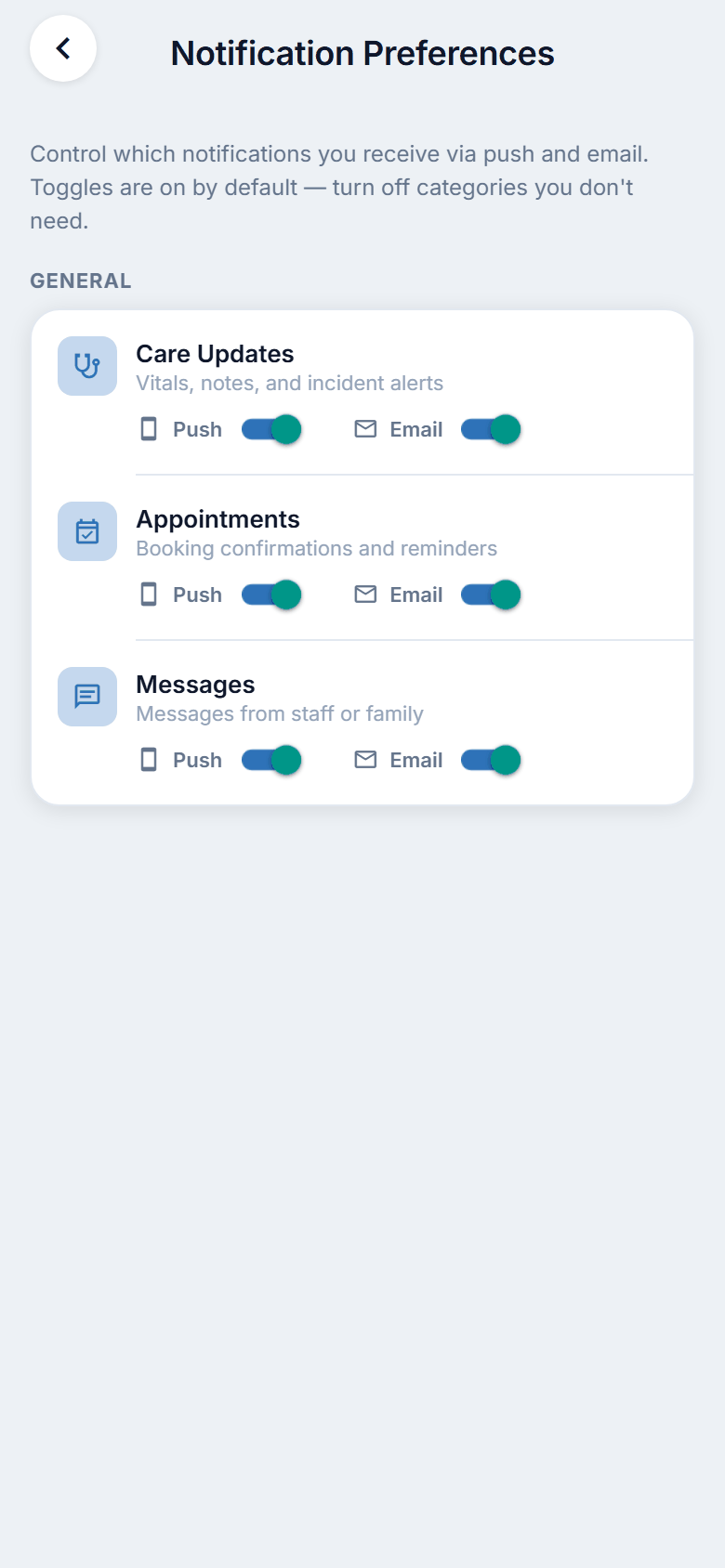
Figure 14.1. Choosing your notices.
Where your notices are shown
Notices reach you as a notice on your phone (Push) and as an email, as you chose above. The app does not have a notices list for family logins: the bell and the Notifications page are for staff.
Sign out
- On Profile, tap Sign Out.
- Confirm.
Sign out whenever the phone is shared.
Ask us to delete my account
- On Profile, tap Ask us to delete my account.
- Read the message and tap Send my request.
- A central administrator reviews your request and answers within 7 days. Nothing is deleted straight away, and your account works as usual until then.
When it is done, your sign-in and your personal details (name, phone, email, photo) are removed. Records the law requires the centre to keep, such as care records and invoices, stay, without your name.
Open this manual from the app
On Profile, tap User Manual. It opens the guide in your browser.
On the website
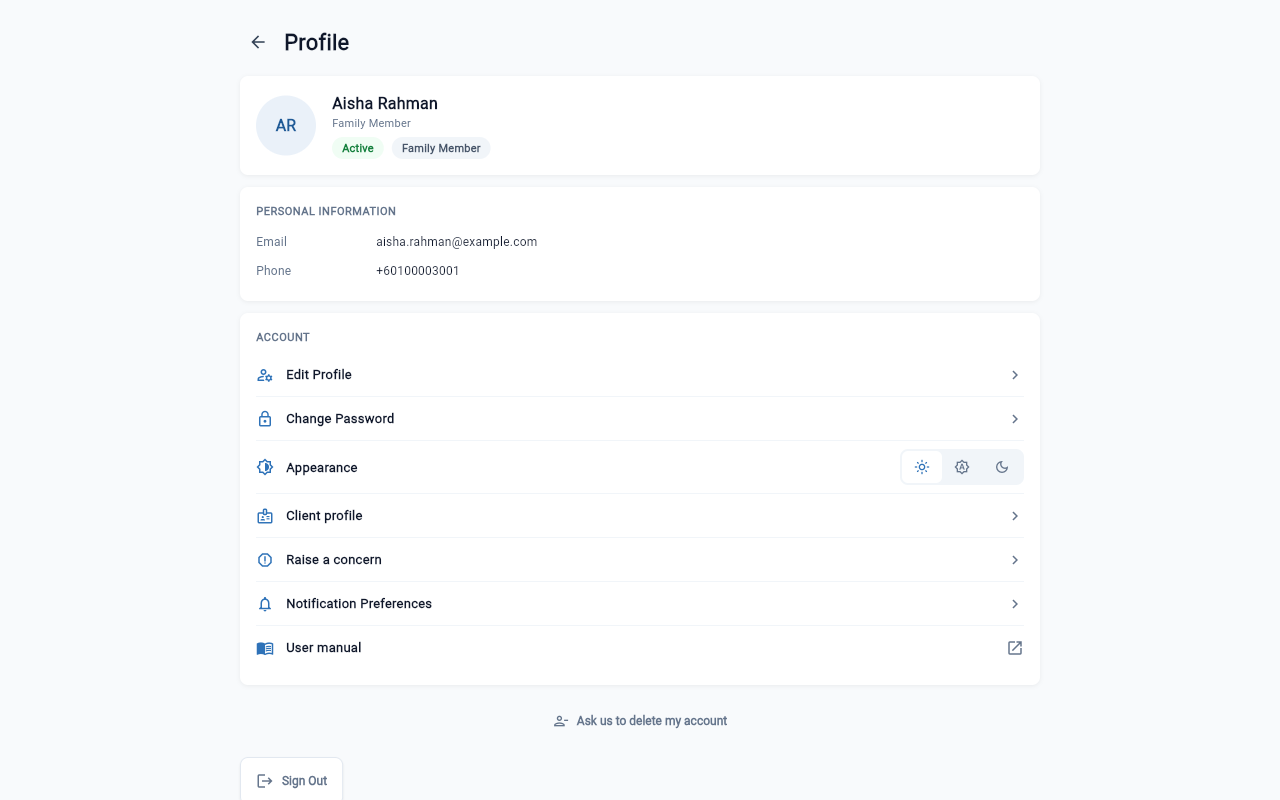
On the website, select Profile at the top right of My client. The Profile page has the same list as the phone: Edit Profile, Change Password, Appearance (Light, System or Dark), Client profile, Raise a concern, Notification Preferences (the same three General categories with Push and Email), User manual, Ask us to delete my account and Sign Out. The website has no fingerprint or Face ID sign-in, and its Edit Profile form does not show the staff-only items. On the website, a new password needs at least 8 characters.